

Recently, people have started to transform photos into drawings using the app. There you have it, the artist.
This trend has reached the social media and it looks like it will stay. Many people have even turned their profile pictures into drawings.
Everything to not be left out of this international trend.
Best of all, the app is free and fully available for cell phones with Android and iPhone (IOS) technology.
Therefore, it becomes possible to make this radical transformation in a practical and efficient way without having to put in so much effort and dedication.
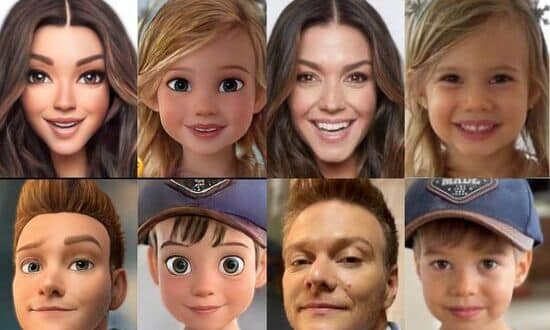
The application offers users the possibility to transform their images into 2D as in 3D, and also caricature. Everything so that the fun doesn't stop!
And to perform the transformation, simply point the app at your face and take a photo, or you can also take an existing photo from your cell phone's gallery.
And at the end of the transformation, just download the file to your cell phone and share it with your friends. Because the fun of the game is share with friends.
Want to know how to turn a photo into a drawing? Then keep reading until the end!
How Voilà Al Artist works
This application works through AI (artificial intelligence). Therefore, the tool was developed to recognize conventional photos to turn them into drawings.
The application is designed to work as a photo editor with the ability to share photos on social networks.
Want to create your own art? See the step by step!
1st Step:
The first step is to download the application on your cell phone, from your cell phone's application store.
Then, just choose a photo of yourself from the gallery or you can also take a photo right away. You can do whatever you want and however you feel most comfortable.
2nd Step:
In the second step, you will be able to choose between: 3D Cartoon, 2D Cartoon, Caricature and Renaissance – to decide which format your art will be in.
After choosing the option, you must confirm the creation of the art, to do this simply confirm the chosen photograph, click on “Use” and wait for the application to do its work.
3rd Step:
Then just click on the share icon in the top right corner so that your friends and family can see your art that was created with such ease.
However, if you don't want them to, they don't need to know that you created these arts in such a practical way. That can be our secret.
Now, if you just want to save the image, you should click on the “Save” option, and the photo will be downloaded to your device.
There you go! With this step-by-step guide, you'll be in fashion and ready to rock social media.
If you liked it, take note of the tips and step by step. And, if that's okay with you, take advantage and share it on social media so your friends can participate too.
And, don't forget to write down the tips to do whenever you want to cause a stir on social media among your friends and family.